
Hostayer
Web hostingFast LiteSpeed hosting for sites, stores and apps. WordPress hostingWordPress installed in a minute, with LiteSpeed Cache. VPS serversYour own server with full root access. Hosting for agenciesHost your clients and earn 20% on every renewal.
Domain searchFind a free name and see renewal prices upfront. Transfer a domainMove a domain you already own to Hostayer. Domain pricesFirst-year and renewal prices for every extension.
Docs and guidesStep-by-step answers for hosting, email and domains. Open a ticketTalk to our team in English, Arabic or Turkish.
For agencies
EN TR ع
0 Log in Get started
Hosting WordPress VPS servers Domains For agencies Docs Log in
EN TR ع
  1. Portal Home
  2. Knowledgebase
  3. Plesk
  4. General (Plesk)
  5. How to Change the Plesk Account's Contact Details

  Categories

Backup/Restore
4
Cloudflare (cPanel)
9
CloudLinux (cPanel)
10
cPanel - Control Panel
54
Databases
11
DirectAdmin
49
DNS - Nameservers
6
Domain
1
Domain Management
10
Email
17
FTP
9
Hosting
1
Installing a Control Panel
6
Mail Filters & SPAM
8
Make money With Hostayer
0
Mobile
11
New account
0
Others
3
PayPal
7
Plesk
47
Security
10
SiteWorx (Control Panel)
58
Softaculous
69
SolusVM
18
SSL
5
Virtualizor
19
vps servers hostayer
15
WHM
18
WordPress
17

  Categories

  Support

My Support Tickets
Announcements
Knowledgebase
Downloads
Network Status
Open Ticket

How to Change the Plesk Account's Contact Details Print

  • 0


Follow these steps to change your Plesk account's contact details.


1. Log in to your Plesk account.


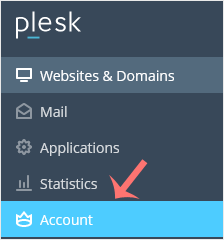
2. Click on Account from the Sidebar Menu.
 

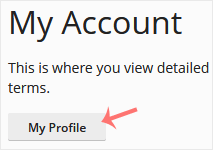
3. Click on My Profile.
 

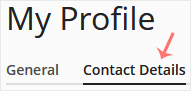
4. Click on Contact Details.
 

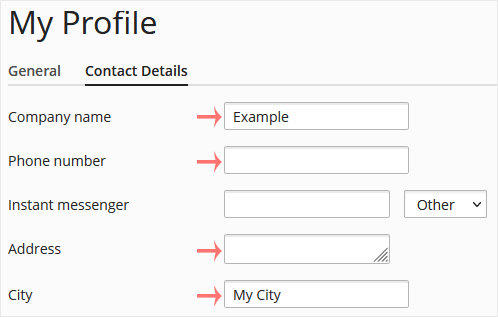
5. Update the details as per your requirements.
 

6. Click Apply.

 

You will see a success message signifying that your Plesk contact details have changed.


Was this answer helpful?

Related Articles

How to Log in to Plesk A tutorial on how to access the Plesk Control Panel.   After you place an order and make a... How to Edit a File in the Plesk File Manager   1. Log in to your Plesk account. 2. Click on Files from the Sidebar Menu.   3. Under File... How to Change the Password of a Plesk Account   Follow these steps to change your Plesk account password.   1. Log in to your Plesk account.... How to Reset a Plesk's Account Password   Follow these steps to reset your Plesk account password.   1. Open your Plesk login URL.... How to Update a Plesk Account's Email Address   Follow these steps to change your Plesk contact email address.   1. Log in to your Plesk...
« Back
Hostayer

Hosting, domains and support for businesses in the Arab world and Türkiye.

Hosting Web hosting WordPress VPS servers
Domains Register a domain Transfer a domain
Hostayer Partners Contact us Knowledgebase
© 2026 Hostayer. All rights reserved. Privacy Policy Terms of Service

Loading...
Loading...
Choose language
العربية
Azerbaijani
Català
中文
Hrvatski
Čeština
Dansk
Nederlands
English
Estonian
Persian
Français
Deutsch
עברית
Magyar
Italiano
Macedonian
Norwegian
Português
Português
Română
Русский
Español
Svenska
Türkçe
Українська

Choose Currency

$ USD
£ GBP

Generate Password

Please enter a number between 8 and 64 for the password length